
Download Carbon Copy Cloner – Reliable Mac Backup, Disk Cloning & Automation Tool
Overview
Carbon Copy Cloner (CCC) is a powerful, yet user‑friendly macOS utility that lets you create exact copies of your internal or external drives, schedule automated backups, and even run custom scripts before or after a clone. Designed for both beginners and power users, CCC handles everything from simple file‑by‑file backups to full‑disk imaging, giving you peace of mind that your data is safe from hardware failure, accidental deletion, or ransomware attacks. The latest version fully supports macOS Ventura, Monterey, Big Sur, and older releases back to OS X 10.6 Snow Leopard, making it a timeless solution for anyone who values data integrity. Whether you need a one‑time clone before a major OS upgrade, a nightly backup of critical work files, or an enterprise‑grade solution with encryption support, Carbon Copy Cloner delivers a secure, fast, and highly configurable experience.
Key Features & Benefits
- Exact Disk Cloning – Create bootable clones of your startup drive.
- Scheduled Backups – Set daily, weekly, or monthly jobs with precise start times.
- Pre‑ and Post‑Flight Shell Scripts – Automate cleanup, logging, or notifications.
- Intelligent Sync – Transfer only changed files, reducing backup time.
- Full Disk Encryption Support – Encrypt backup volumes with step‑by‑step guidance.
- Disk Image Creation – Build compressed or sparsebundle images for archiving.
- Network Volume Compatibility – Clone to SMB, AFP, or NFS shares securely.
- Extensive Logging & Reporting – Email notifications, detailed logs, and error alerts.
- Recovery HD Management – Safely create or preserve macOS recovery partitions.
- Drag‑and‑Drop Interface – Simple UI for quick source‑and‑destination selection.
Why Users Love Carbon Copy Cloner
The combination of an intuitive graphical interface and deep technical capabilities makes CCC stand out among Mac backup tools. Users appreciate the ability to schedule backups without needing third‑party cron jobs, and the built‑in script hooks let IT professionals tailor the cloning process to their exact workflow. The software also provides clear, volume‑specific advice when enabling FileVault encryption, removing much of the guesswork that typically surrounds secure backups. Moreover, CCC’s robust error handling ensures that if a source or destination disappears mid‑task, the program pauses gracefully and resumes on the next scheduled run, preventing data corruption.
Pros
- Straightforward UI that beginners can master within minutes.
- Highly reliable cloning – bootable clones work flawlessly on most Macs.
- Flexible scheduling and script integration for power users.
- Excellent support for encrypted backups and recovery partitions.
- Regular updates that keep pace with macOS releases.
Cons
- Only available for macOS – no Windows or Linux version.
- Full license required for unlimited cloning (free trial limited to 30 days).
- Advanced scripting may be intimidating for non‑technical users.
Installation, Usage & Compatibility
Step‑by‑Step Installation
1. Download the installer from the official Bombich Software website. The file is a signed .dmg that macOS recognizes as safe.
2.
Open the DMG and drag the Carbon Copy Cloner icon into your Applications folder.
3. On first launch, macOS will prompt you to confirm that you trust the developer. Click “Open”.
4.
CCC will request full‑disk access; grant it in System Settings → Privacy & Security → Full Disk Access to enable cloning of the startup volume.
5. After granting permissions, the app starts with a welcome screen where you can activate your license or begin a 30‑day trial.
How to Create Your First Clone
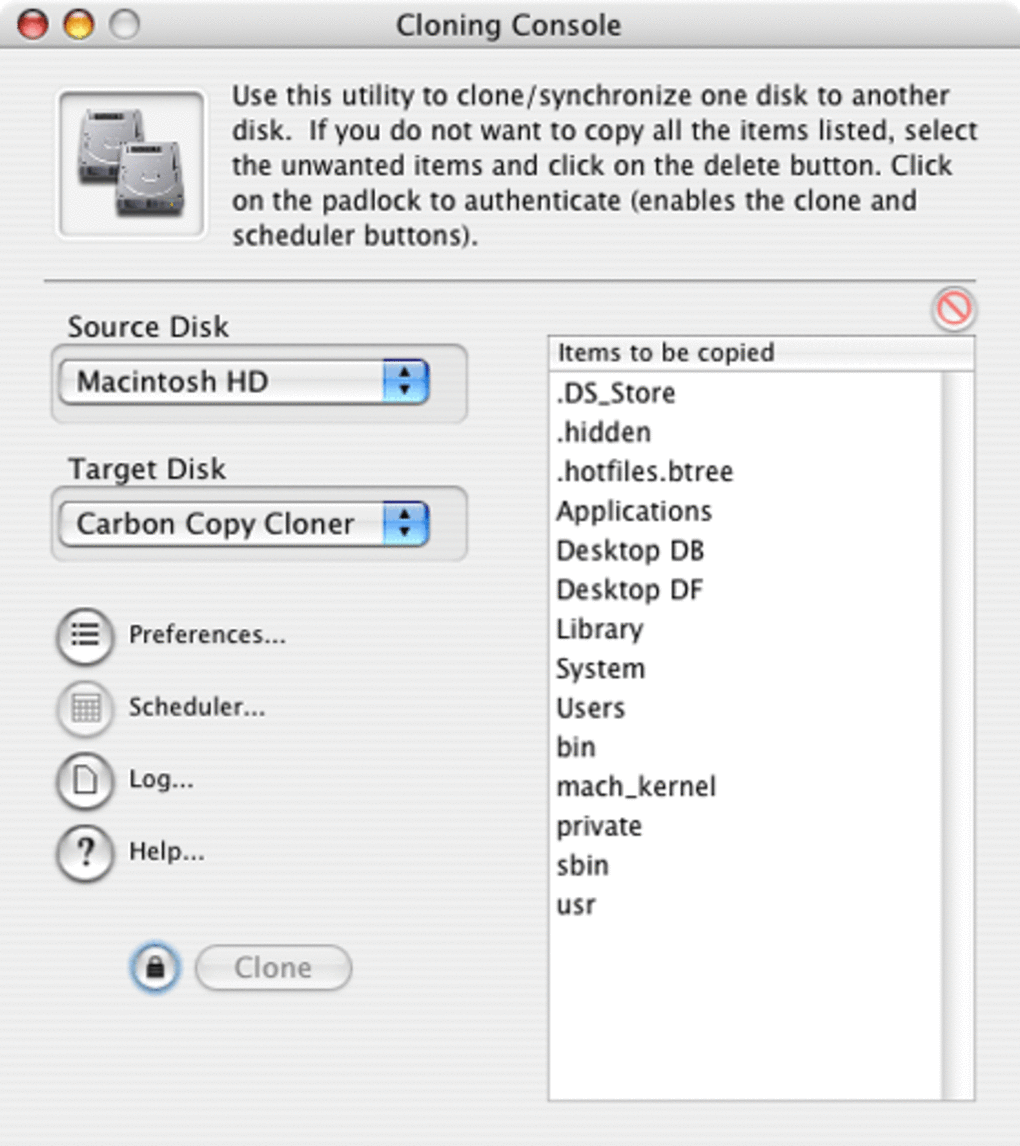
Once installed, the main window displays two panes: Source on the left and Destination on the right. Drag your internal SSD (usually named “Macintosh HD”) into the source pane, then select an external USB‑C drive as the destination. Click the “Clone” button to start a one‑time copy. CCC verifies the source, creates a bootable replica, and provides a progress bar with estimated completion time. After the clone finishes, you can restart your Mac while holding the Option key to boot from the cloned drive, confirming that the copy is truly bootable.
Scheduling Automated Backups
For ongoing protection, click the “Schedule” tab. Choose a recurrence (daily, weekly, or custom), select the time of day, and optionally set a “Run only if the computer is idle” rule. CCC will run silently in the background, sending an email or notification when the job succeeds or fails. The built‑in log shows which files were added, updated, or removed, helping you audit changes over time.
Operating System Compatibility
Carbon Copy Cloner is designed exclusively for macOS. It supports the following versions:
- macOS Ventura (13.x)
- macOS Monterey (12.x)
- macOS Big Sur (11.x)
- macOS Catalina (10.15)
- macOS Mojave (10.14) and earlier back to OS X 10.6 Snow Leopard
The software automatically detects the OS version and adjusts its cloning engine to use the appropriate APIs, ensuring reliable operation on both Intel‑based and Apple Silicon Macs. Network‑mounted volumes, Drobo devices, and FUSE‑based file systems are also supported, though CCC includes special handling for known quirks (e.g., extended attribute limits on Drobo).
Frequently Asked Questions
Can Carbon Copy Cloner clone a Time Machine backup?
Yes. CCC can clone a Time Machine volume to another drive, preserving the backup structure. However, it is recommended to run the clone when Time Machine is not actively backing up to avoid file‑system conflicts.
Is the cloned drive bootable on Apple Silicon Macs?
Absolutely. CCC creates a full, bootable replica that includes the required APFS containers and recovery partitions, allowing you to boot an Apple Silicon Mac from the cloned drive by holding the Option key at startup.
How does CCC handle encrypted backups?
When you select an encrypted destination, CCC guides you through the necessary steps: creating a FileVault‑enabled volume, setting a password, and ensuring the encryption process completes before the first backup runs. The app also displays clear warnings if the chosen volume cannot support encryption.
Can I run a pre‑backup script to clean temporary files?
Yes. In the “Advanced” settings of each task, you can specify a shell script that executes before the clone starts. This is ideal for deleting caches, closing applications, or logging system status.
What happens if the source drive fails during a scheduled backup?
If the source or destination disappears mid‑task, CCC gracefully aborts the operation, logs the error, and retries on the next scheduled run. It will not attempt to write partial data, protecting the integrity of both drives.
Conclusion & Call to Action
Carbon Copy Cloner remains one of the most reliable, feature‑rich backup and cloning utilities available for macOS. Its blend of simplicity for newcomers and deep configurability for IT professionals makes it a versatile tool that grows with your needs. Whether you are safeguarding a personal MacBook, managing a fleet of workstations, or preparing for a major OS upgrade, CCC gives you confidence that a complete, bootable copy of your data is always just a click away. The regular updates, responsive support, and transparent licensing further cement its reputation as a long‑term investment in data safety.
Ready to protect your Mac with a trusted cloning solution? Download Carbon Copy Cloner now and start your free 30‑day trial. Experience the peace of mind that comes from knowing your data is securely duplicated, scheduled, and ready for recovery at any moment.







